Solution to Know How to Backup Windows Registry
Follow Steps to Backup the Entire Registry:
- Click Start > All Programs > Accessories > System Tools > Backup.
- Click Advanced Mode.
- Do one of the following:
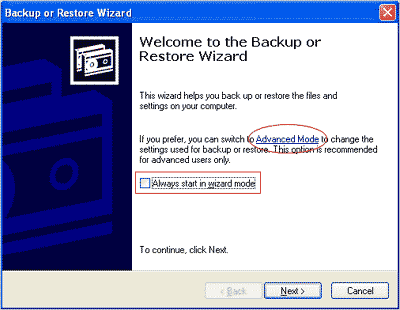
- If you see the Backup or Restore Wizard as shown below, make sure that “Always start in wizard mode” is not checked, and then click Advanced Mode.
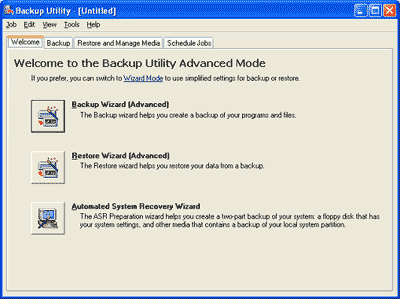
- If you see the Backup Utility window as shown below, go on to step 4.
- If you see the Backup or Restore Wizard as shown below, make sure that “Always start in wizard mode” is not checked, and then click Advanced Mode.
- On the Welcome tab, click the Backup Wizard (Advanced) button.
- Click Next.
- Select Only back up the System State data, and click Next.
- Click the Browse button.
- If the Insert Disk warning message displays, click Cancel.
- In the left pane, click the Desktop button.
- Click Save.
- Click Next.
- Click Finish.
- When you see the message “The backup is complete” — this could take a few minutes–click Close.
- Close the Backup Utility window.